Cable & Port Cheat-Sheet#
A picture guide to the wires and plugs around the house. Use it to figure out what a cable is, which hole it goes in, and what each computer’s ports are for.
How to use this page#
- Hold the end of the cable up so you can see the metal/plastic tip.
- Find the row below that matches its shape and the photo next to it.
- The row tells you its name, what plugs into it, and where you’ll see it.
💡 When in doubt, don’t force it. Plugs only fit one way and the right one slides in easily. If it doesn’t go, it’s probably the wrong spot.
Connectors at a glance#
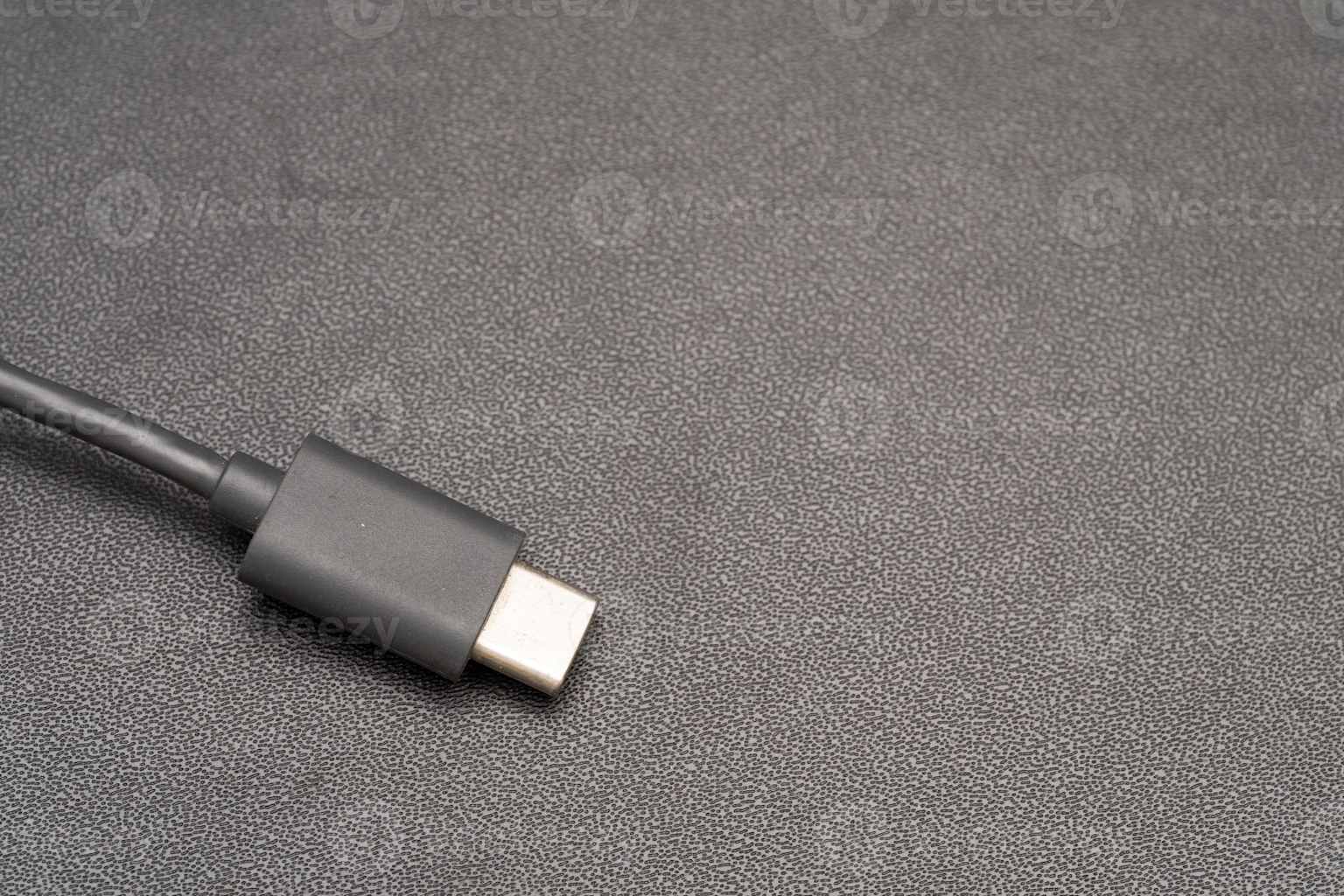
USB-C / Thunderbolt#
| Looks like | A small, rounded oval, about the width of a pencil. Both ends look the same and it plugs in either way up (no wrong side). |
| What plugs in | The MacBook Air’s charger, and almost any modern accessory or adapter. |
| Where you’ll see it | On the sides of Mom’s MacBook Air. Newer chargers and dongles use this. |
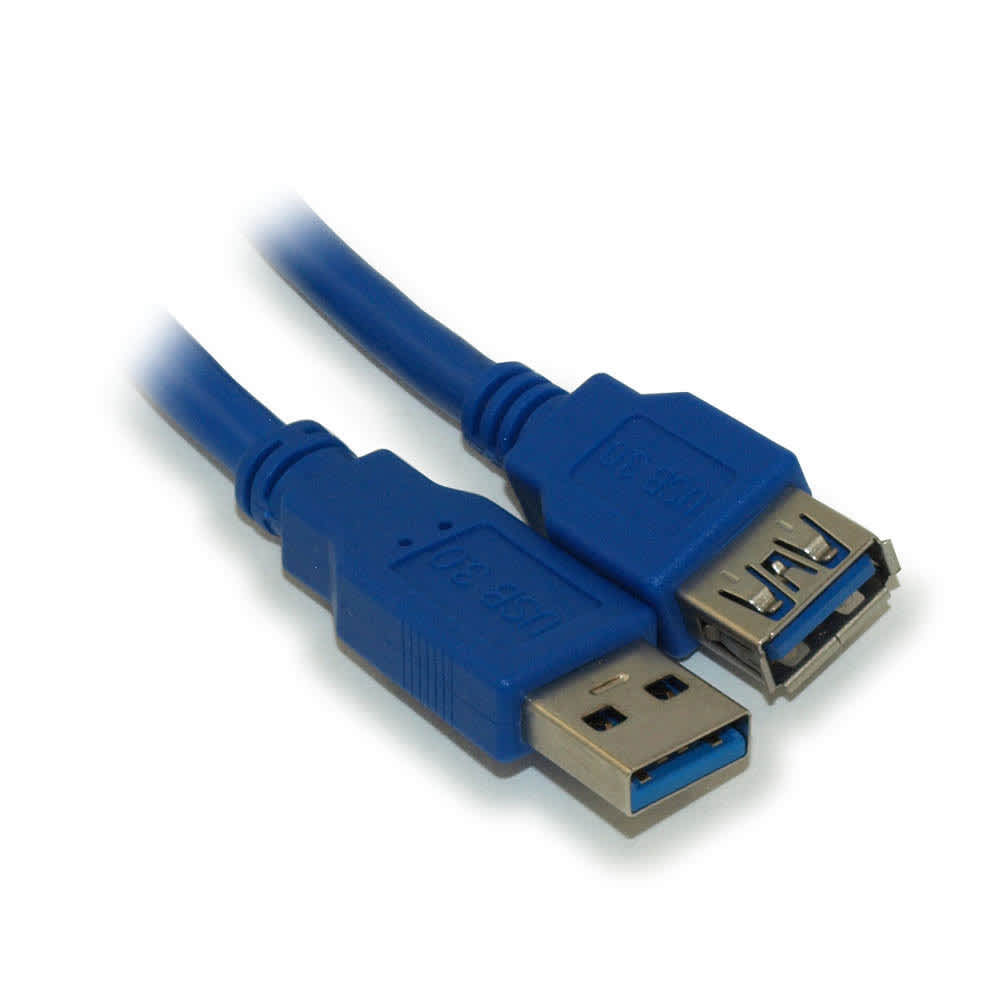
USB-A (the “regular” USB)#
| Looks like | A flat rectangle about ½ inch wide, with a plastic block inside. Only goes in one way — if it won’t fit, flip it over. |
| What the color means | Black inside = older USB 2.0. Blue inside (and often a blue cable) = newer, faster USB 3.0. They fit the same socket and both work — blue is just quicker for things like backup drives. |
| What plugs in | Flash drives, mouse/keyboard, printers, phone charging cables, older accessories. |
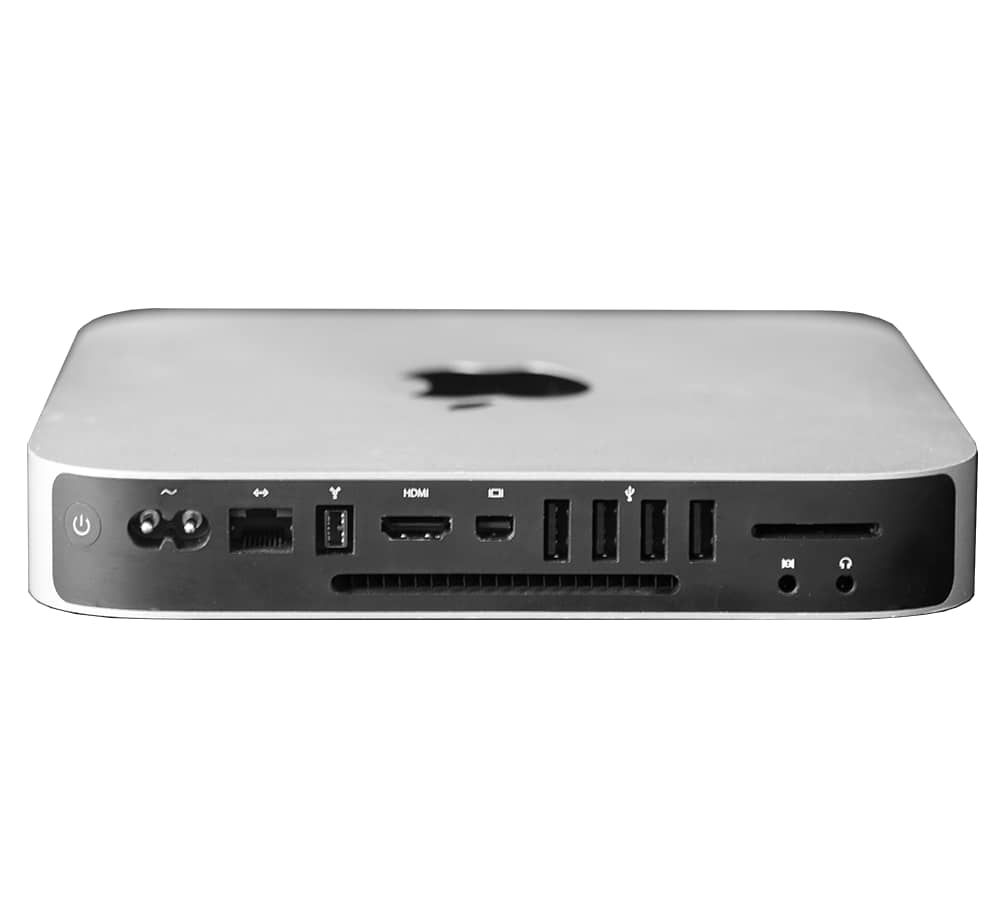
| Where you’ll see it | The back of the Mac minis (several of them). The MacBook Air needs a dongle for this. |
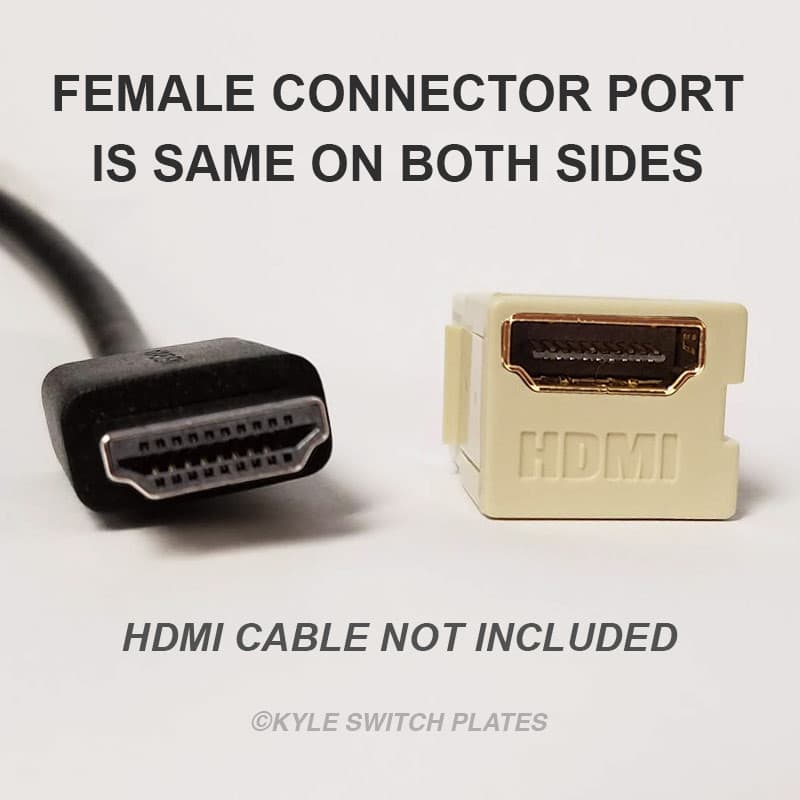
HDMI (TV & monitor picture)#
| Looks like | A wide, flat trapezoid (a rectangle with two corners clipped). About ¾ inch wide. |
| What plugs in | The cable that carries the picture and sound to a TV or monitor. |
| Where you’ll see it | The back of a Mac mini and the back of the TV/monitor. |
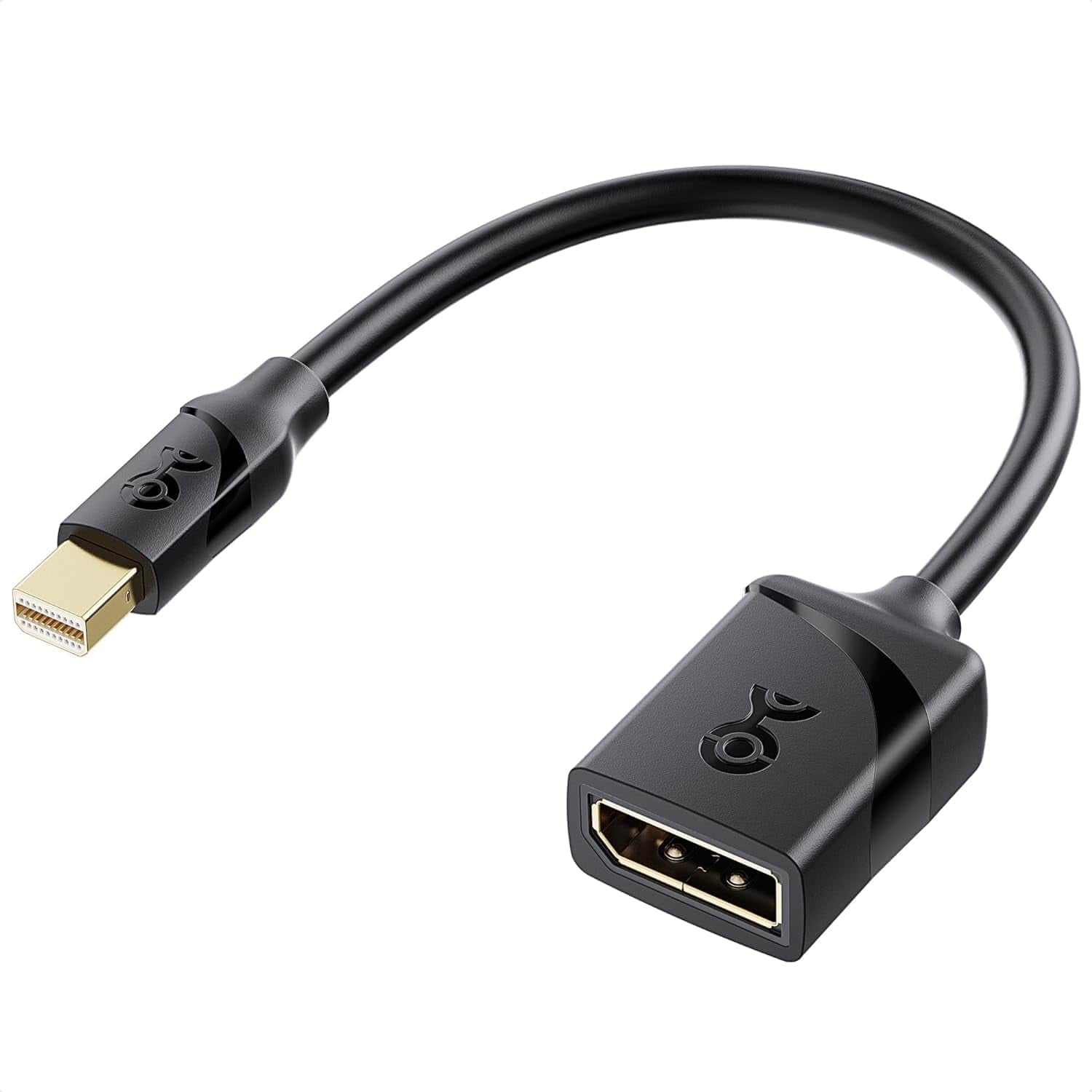
Mini DisplayPort / Thunderbolt (older Mac minis)#
| Looks like | A small connector with two bottom corners clipped — narrower than HDMI, with a tiny lightning-bolt ⚡ or display symbol next to the port. |
| What plugs in | An older monitor cable. |
| Where you’ll see it | The back of the older silver Mac minis. |
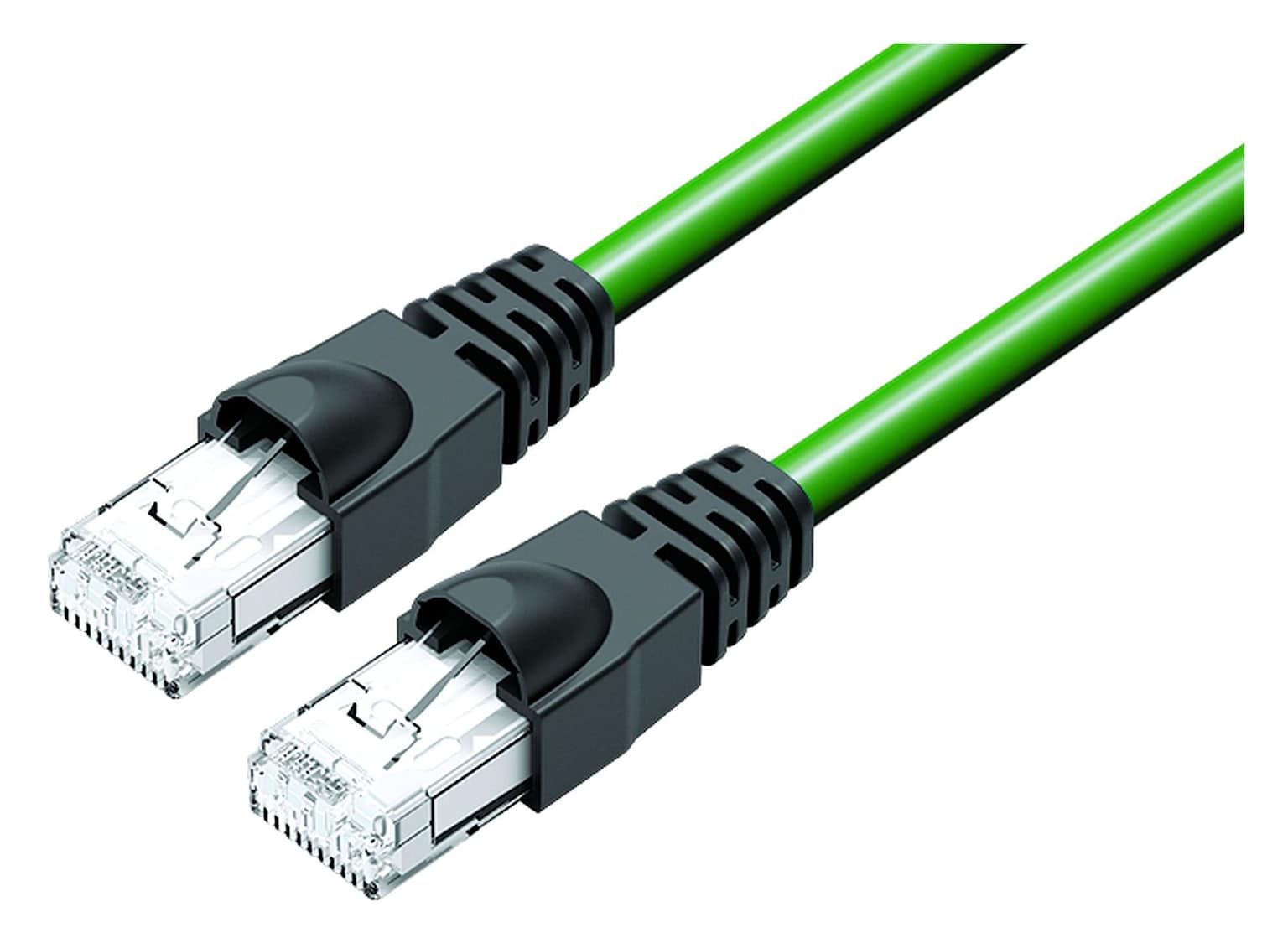
Ethernet / RJ45 (the “internet wire”)#
| Looks like | A fat clear-plastic plug, wider than a phone-line plug, with a little spring clip on top that clicks in. The cable is usually thick and blue, white, or gray. |
| What plugs in | The wired internet connection. |
| Where you’ll see it | The back of the Mac minis and the UniFi network gear (see the Network section). |
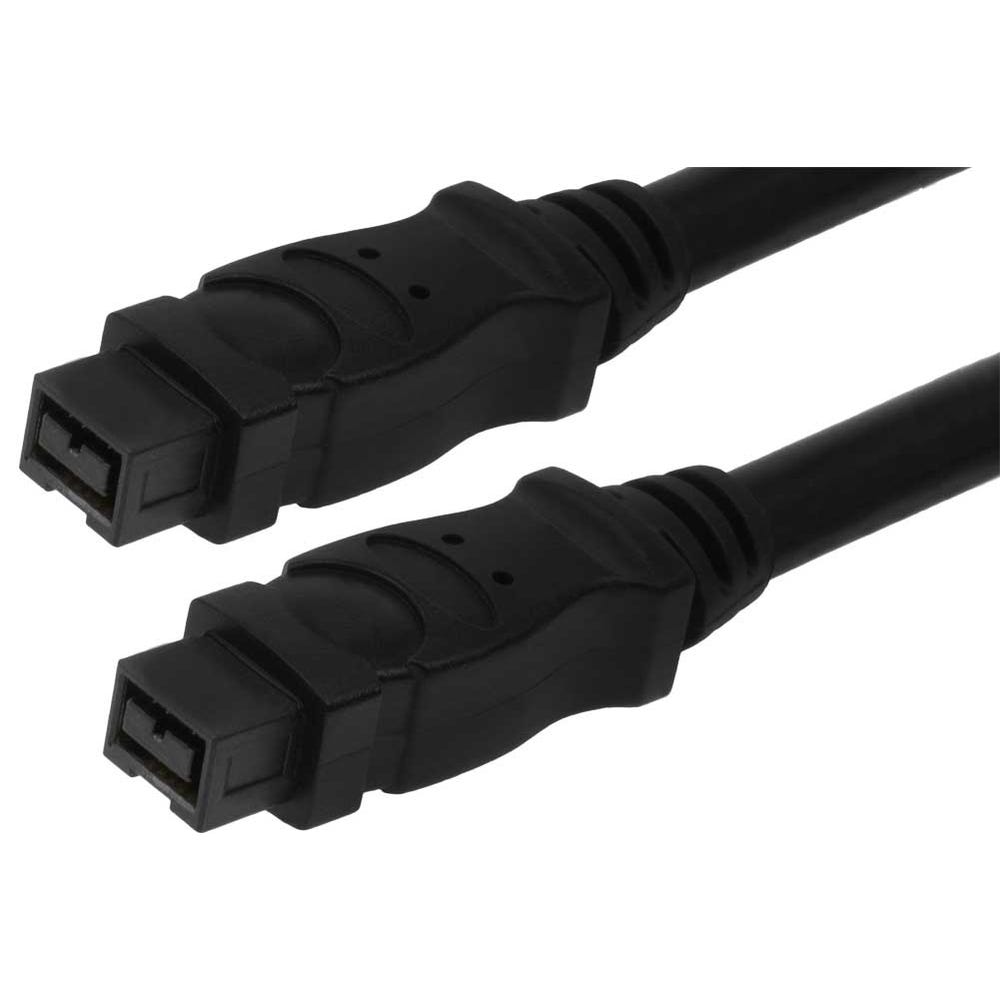
FireWire 800 (old backup drives)#
| Looks like | A small squarish plug, a bit chunkier than USB. Older and uncommon now. |
| What plugs in | Older external backup hard drives. |
| Where you’ll see it | Only on the older silver Mac minis. If you don’t see one, you don’t need it. |
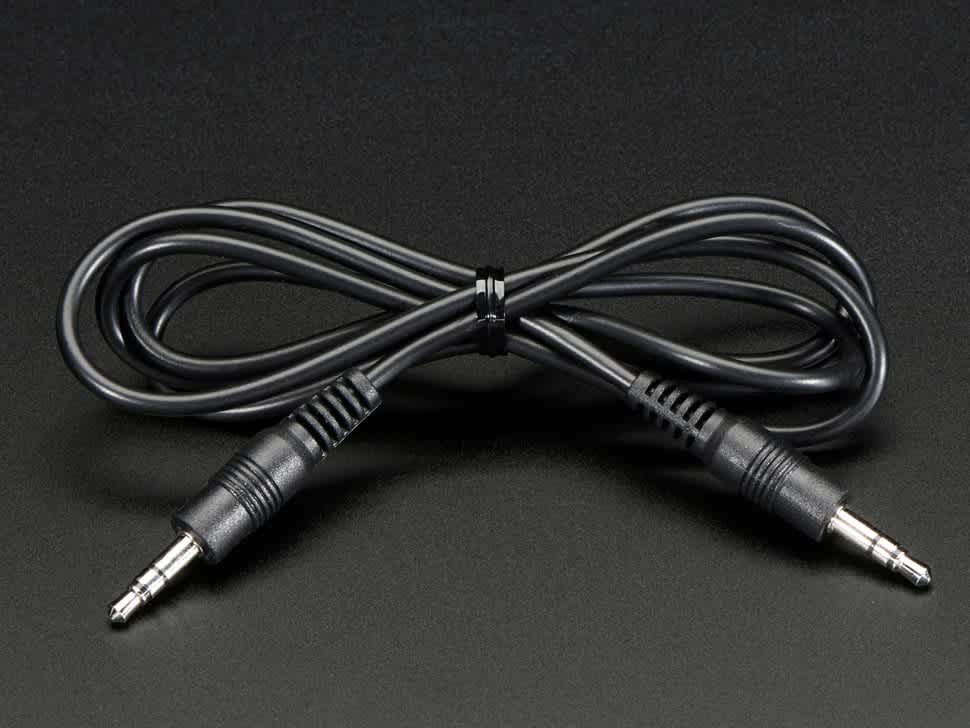
Headphone / 3.5 mm audio#
| Looks like | A thin round metal pin with a couple of black rings — the classic headphone plug. |
| What plugs in | Headphones or external speakers. |
| Where you’ll see it | The side of the MacBook Air and the back of the Mac minis. |
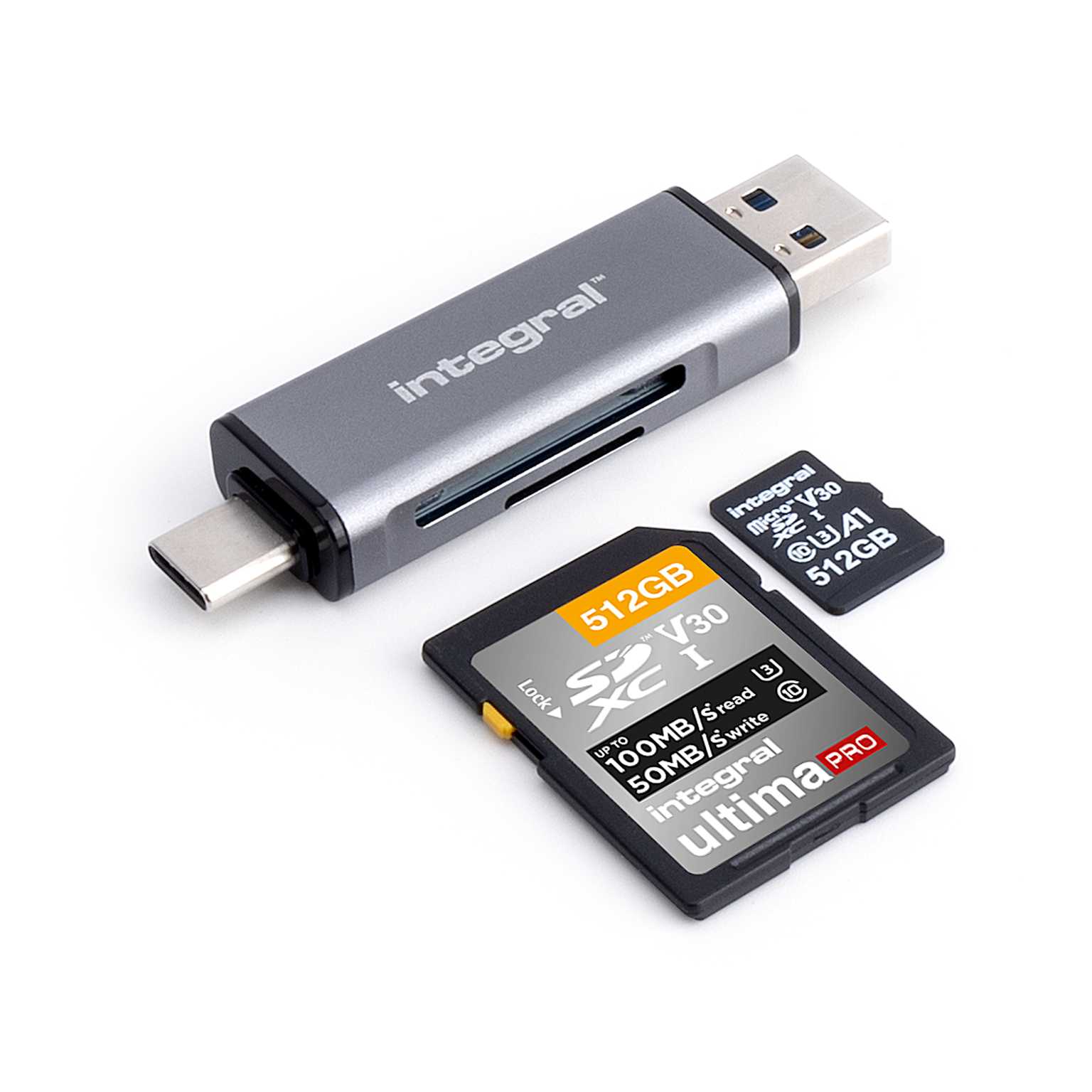
SD card slot#
| Looks like | A thin letterbox slot (not a cable). An SD memory card — like from a camera — slides in. |
| What plugs in | Camera memory cards. |
| Where you’ll see it | The back of the older silver Mac minis. |
Power cords#
- MacBook Air: a small white USB-C charger (the same oval plug shown at the top).
- Mac mini: a thick black cord with a normal 3-prong wall plug.
If a Mac mini is totally dead, check this cord is firmly in both the wall and the back of the mini before anything else.
Each computer and its ports#
Mom’s MacBook Air (the laptop)#
This is the newer, lightweight laptop. It deliberately has very few holes:
- 2 × USB-C / Thunderbolt on the left side — one of these is also where the charger goes.
- Headphone jack on the right side.
That’s it. To plug in anything with a USB-A, HDMI, or Ethernet end, you need a small adapter (a “dongle” or “hub”) that turns one USB-C port into several regular ports. If you can’t find a hole that fits, you’re probably looking for the dongle.
The Mac minis (Pop’s office, the kitchen, and the quilt room)#
These are the small square desktop computers. All the plugs are on the back. They come in two styles, so the back looks a little different depending on which one you’re at:
The older silver minis — power, Ethernet, FireWire 800, HDMI, one Mini-DisplayPort/Thunderbolt, four USB-A, an SD card slot, and audio jacks:
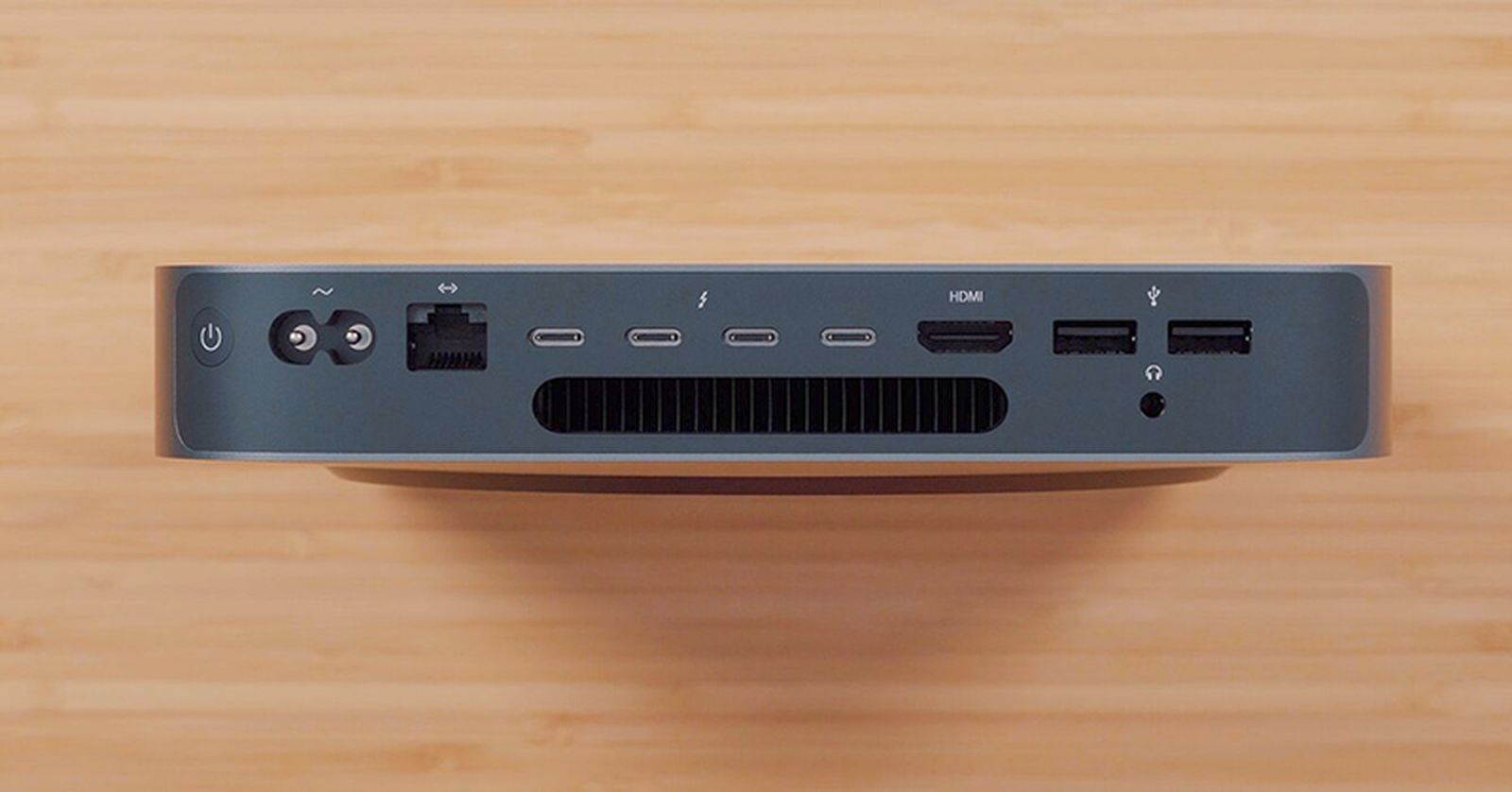
The newer space-gray mini — power, Ethernet, four USB-C/Thunderbolt, HDMI, two USB-A, and a headphone jack (no FireWire, no SD slot):
📌 The minis run an older version of macOS on purpose — they can’t all be updated, and that’s fine. Don’t let any “update your Mac” pop-ups worry you; just close them.
The network (Ubiquiti / UniFi)#
The Wi-Fi at Bedford runs on Ubiquiti gear (the brand is “UniFi”). It’s the same system Ben uses at home, and the two houses are meshed together — so Ben can see and fix the Bedford machines remotely without anyone driving over. For how to join the Wi-Fi and what to do when the internet drops, see Wi-Fi & Internet.
What the gear is:
The Comcast box is the modem — it’s where the internet actually arrives. (The cable TV / DVR is a separate Comcast box and is not part of the Wi-Fi.)
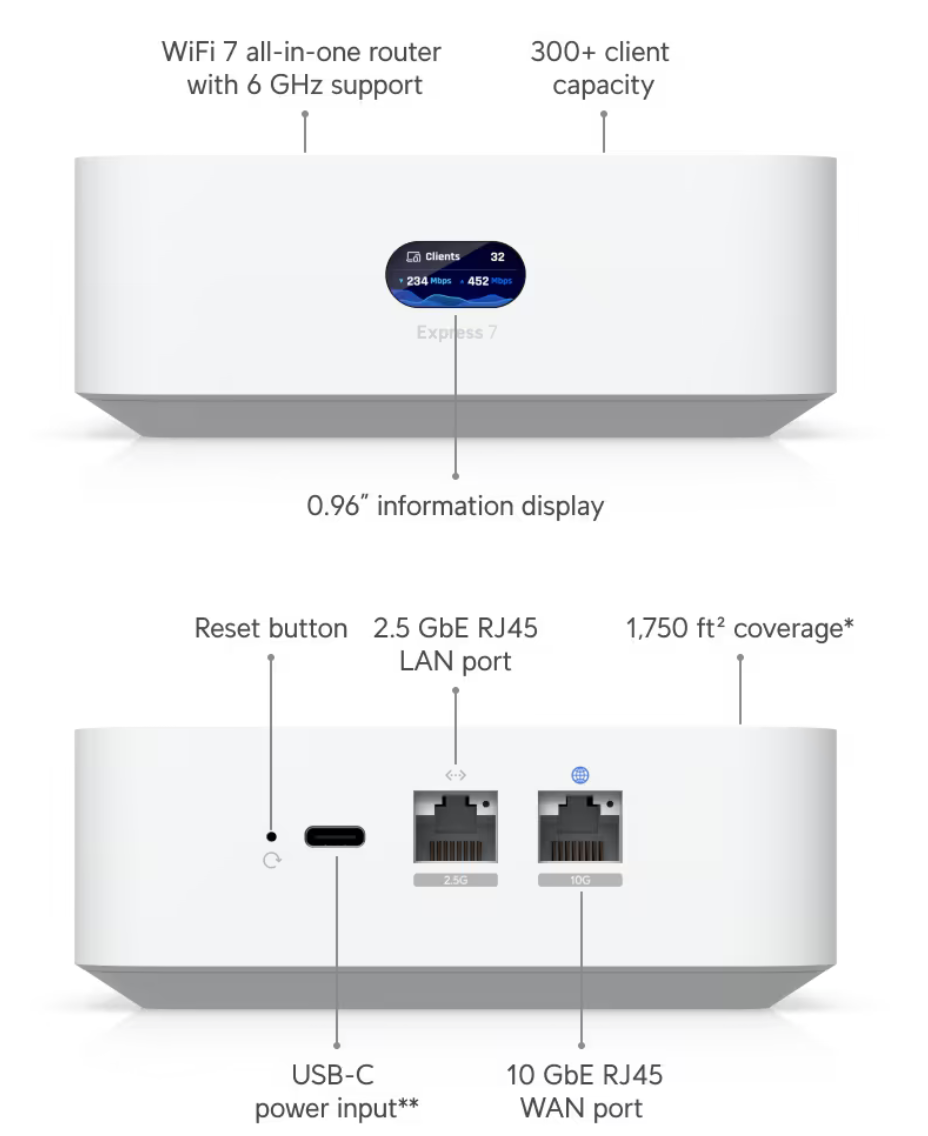
The router (UniFi Express 7) — a small white box with a tiny screen on the front. This is the heart of the network: the internet from the Comcast modem plugs into it, and it also broadcasts the main Wi-Fi.
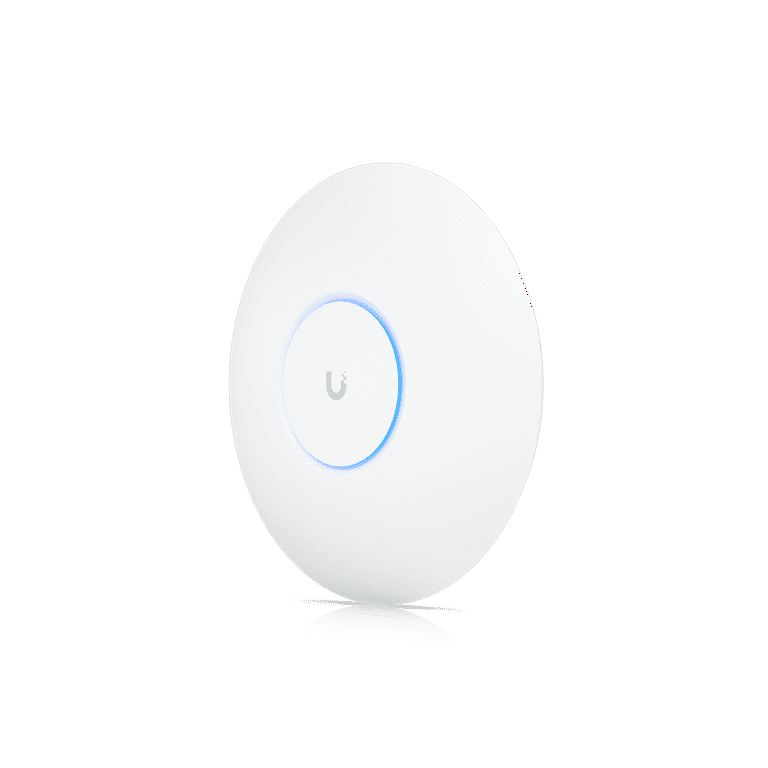
Access points spread the Wi-Fi to the far corners of the houses. You’ll see two kinds of shapes — a round white disc (on a ceiling or wall) and a tall white cylinder.
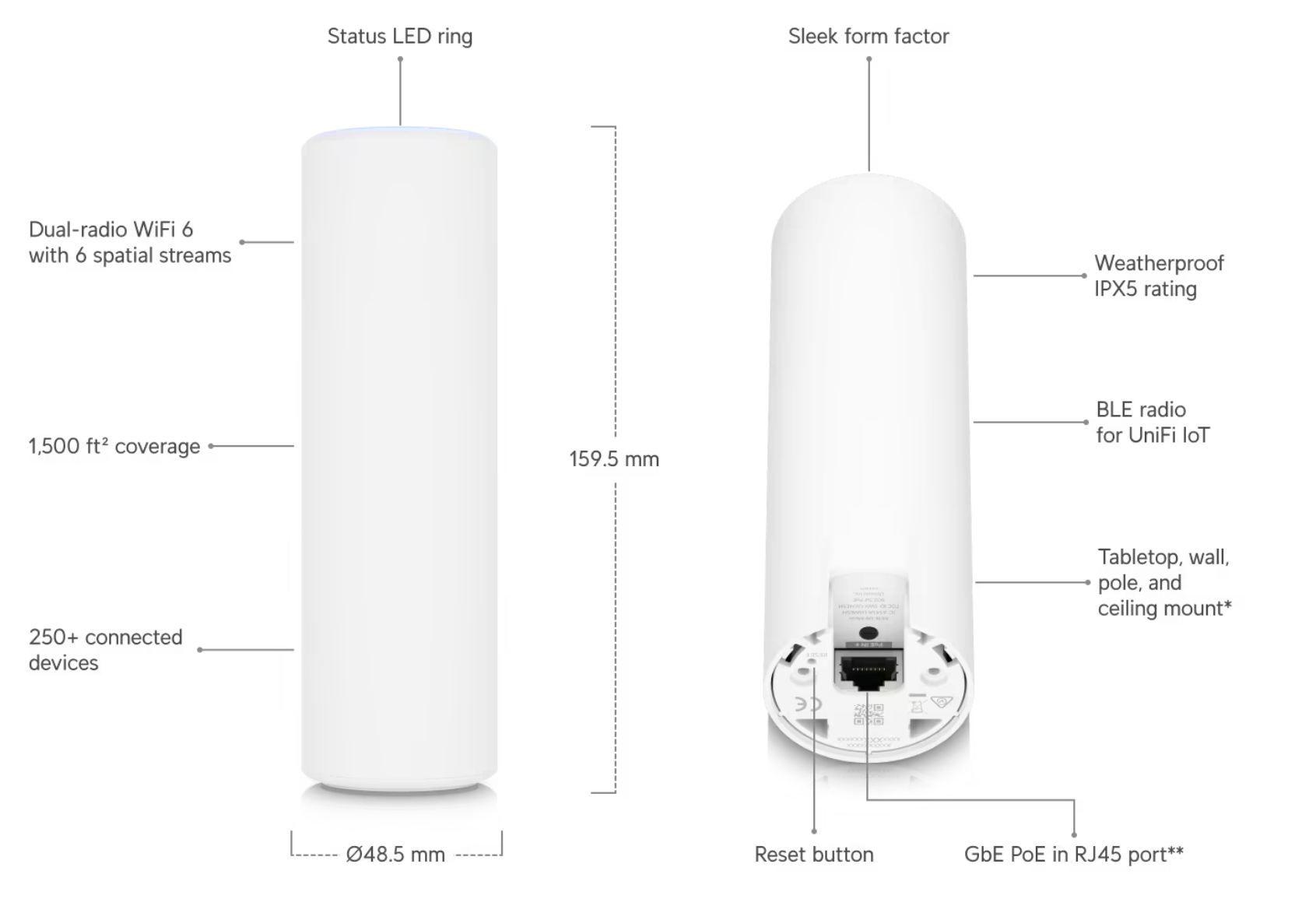
Switches (USW Flex Mini) — little white 5-port boxes that add more wired connections. They just pass traffic along; nothing to manage.
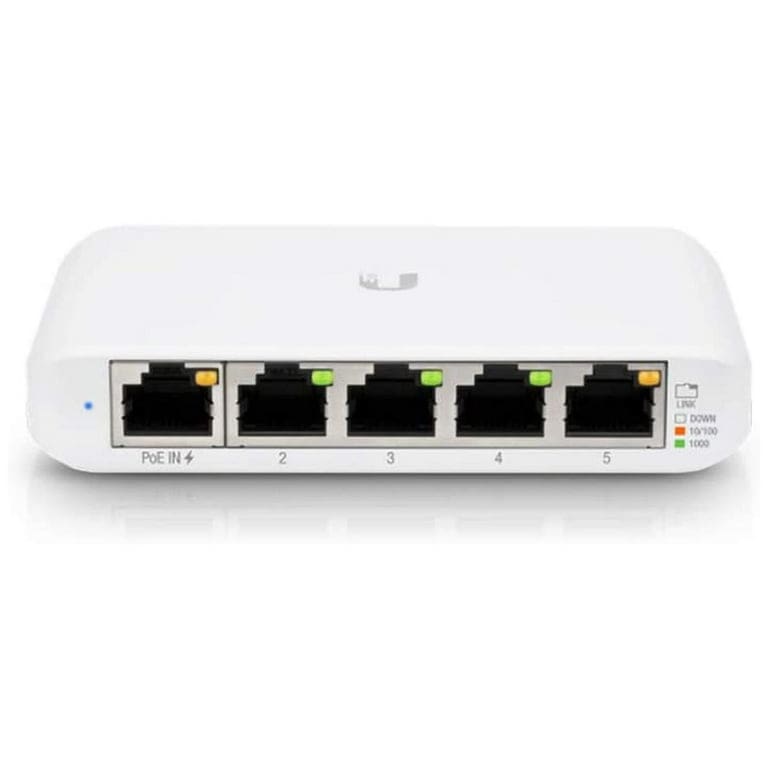
Reading the lights: on UniFi gear, a steady white or blue light generally means healthy. A flashing, off, or amber/red light means it’s starting up or has a problem — note the color and text Ben.
⚠️ Power-over-Ethernet warning. Some of these boxes get both their internet and their power through a single Ethernet cable (look for a port marked “PoE IN”). Unplugging that cable to “test” it will turn the device off. If a network device loses power when you unplug an Ethernet wire, that’s normal — plug it right back in.
A note on accuracy#
These photos are reference images of the same kinds of gear we use — the real machines may differ slightly. If something in your hand doesn’t match anything here, that’s exactly the moment to snap a picture and text Ben.